Report
In addition to specific export options which vary between different analysis and plots, all results can be saved within a workspace and outside of TSE Analytics using the Report Widget.
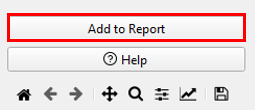
- Result tables and graphs can be added to the Report by clicking Add to Report at the bottom of the control panel of the respective widget.
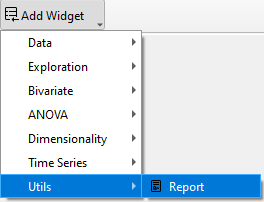
- Then click the Utils - Report, the added report works as a text editor and allows to add customized text to analysis results.
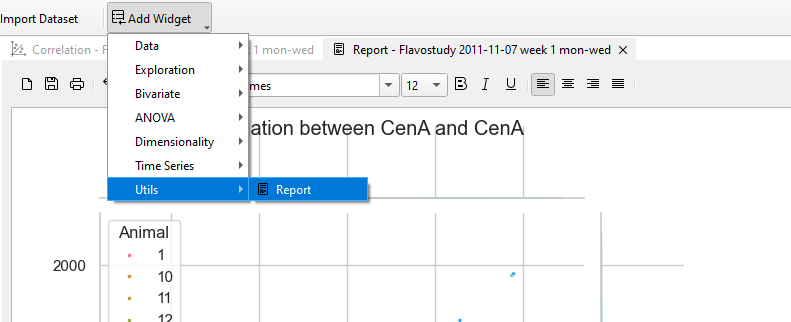
The Report menu offers several tools for editing the report and text elements (from left to right):
- Undo/Redo
- Cut/ Copy/ Paste
- Selection of text font
- Selection of text size
- Text style: Bold/ Italic/ Underline
- Content alignment: Left/ Center/ Right/ Justify

Each dataset has an individual report and all reports are saved within a workspace in TSE Analytics when saving the workspace.
Reports can also be saved outside of TSE Analytics as an .html file by clicking on the Save button (‘Memory disk’ symbol) in the Report menu.

Reports can also be printed by clicking on the Print button (‘Printer’ symbol) in the Report menu. If Microsoft Print to PDF is selected under Printer in the printing settings, reports can thereby also be saved as .pdf files.

All entries of an existing report are cleared by clicking the New Report button (‘Sheet’ symbol) on the left of the report menu.

Warning
This action cannot be undone! Clicking New Report will definitively delete all previous content from the report.