Binning
Time binning is a data processing technique used to group time-series data into defined time intervals or phases, facilitating analysis and pattern recognition.
In behavioral experiments, such as continuous monitoring of rodent activity, feeding, or social interactions, large volumes of data are generated at high temporal resolution. Time binning allows users to aggregate these data according to fixed time intervals, light/dark cycles, or custom time phases, enabling the calculation of summary metrics such as average activity levels, feeding events, or social interactions within each period. By aggregating data into these intervals, you can simplify analysis, identify trends, and make comparisons more manageable.
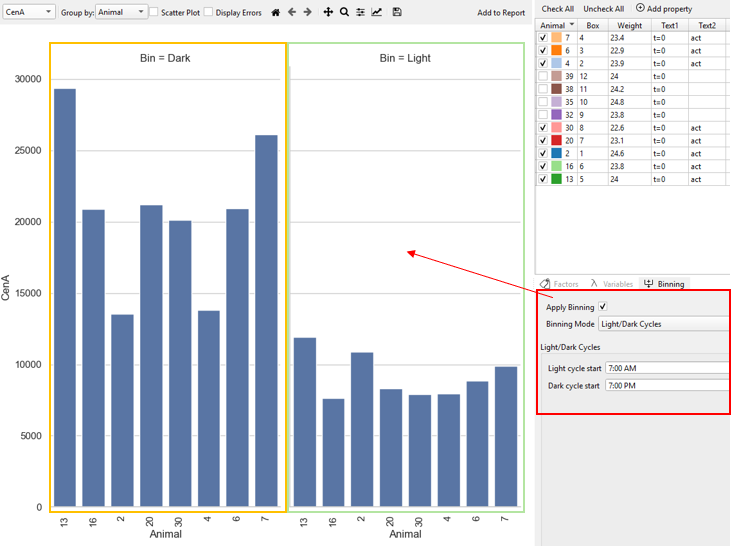
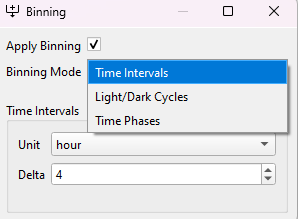
Time binning can be applied to a selected dataset by ticking the Apply Binning check box in the Binning widget. For time binning, three different Binning Modes with customizable settings are available and can be selected from the dropdown menu: binning by repeating Time Intervals, binning according to Light/Dark Cycles and binning by custom Time Phases.
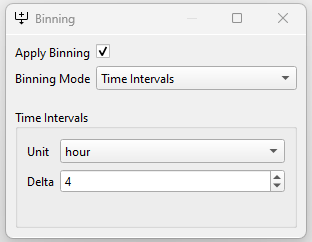
For binning by repeating Time Intervals of equal length, the duration of the time intervals can be set by choosing the respective unit (day, hour or minute) from the Unit drop-down menu and the number of days, hours or minutes, respectively, under Delta.
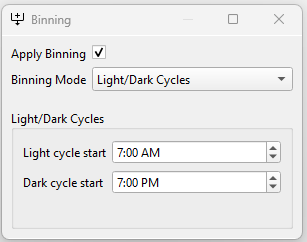
For binning by Light/Dark cycles, the start of the light and dark cycle as the time of the day (24h format) can be customized under Light cycle start or Dark cycle start, respectively, after selecting the binning mode Light/ Dark Cycles.
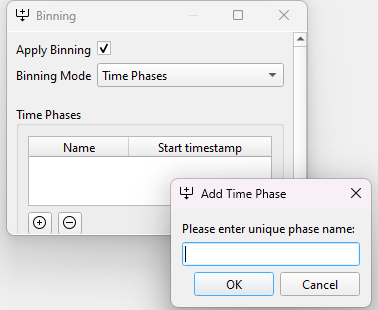
When selecting binning by Time Phases, custom time phases can be added by clicking the + symbol in the bottom left corner. A unique name for each time phase must be entered in the pop-up window and can be changed by double-clicking on the phase name in the Time Phases table. A time phase can be removed by selecting the respective row in the list (highlighted in blue) and clicking the - symbol in the bottom left corner.
Warning
Changes in time binning settings are not applied automatically to the data table in the Table widget and plots in the Plot widget. These widgets are only updated if previously deactivated time binning is activated again.
It is recommended to change settings only while time binning is inactive (tick box not checked) and to apply changes by activating time binning again. Alternatively, time binning has to be deactivated (uncheck tick box) and activated (check tick box) again to apply changes.
Note
For all other analysis widgets (Exploration, Bivariate, AN(C)OVA, Dimensionality and Timeseries), changes in time binning settings (applying of binning, binning mode and time binning settings) are only applied upon clinking Update in the control panel.